Новое видео
Connecting Two Ubuntu Computers with Ethernet Cable

Видео: Connecting Two Ubuntu Computers with Ethernet Cable
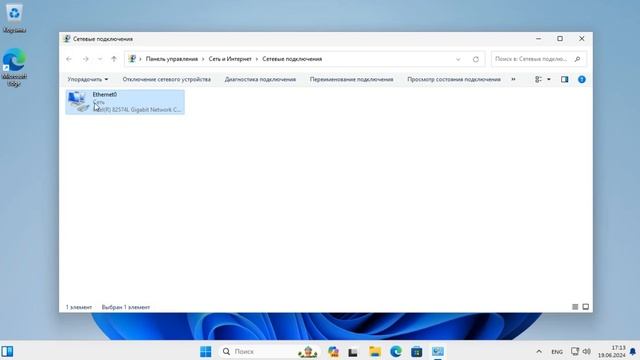
DisclaimerDisclosure: Some of the content was synthetically produced using various Generative AI artificial intelligence tools so there may be inaccuracies or misleading information present in the video. Please consider this before relying on the content to make any decisions or take any actions etc. If you still have any concerns please feel free to write them in a comment. Thank you. --- Summary: Learn how to establish a direct wired connection between two Ubuntu computers using an Ethernet cable. Follow this comprehensive guide for a seamless setup process and efficient data transfer. --- Connecting Two Ubuntu Computers with Ethernet Cable: A Step-by-Step Guide In various scenarios you might find the need to establish a direct connection between two Ubuntu computers for efficient data transfer or other networking purposes. One reliable and straightforward method to achieve this is by using an Ethernet cable. This step-by-step guide will walk you through the process of connecting two Ubuntu computers via an Ethernet cable. Prerequisites Before you start ensure that you have the following: Ethernet Cable: Use a standard Ethernet cable to connect the Ethernet ports of both computers. Static IP Addresses: Assign static IP addresses to both computers for a more stable connection. Step 1: Physically Connect the Computers Power off both computers. Connect one end of the Ethernet cable to the Ethernet port of the first computer. Connect the other end of the Ethernet cable to the Ethernet port of the second computer. Step 2: Configure Static IP Addresses Open the network settings on each computer. You can do this through the system settings or the network icon in the system tray. Navigate to the wired or Ethernet connection settings. Choose the IPv4 settings and select Manual. Assign a static IP address to each computer. For example: Computer 1: IP Address: 192.168.1.1 Subnet Mask: 255.255.255.0 Computer 2: IP Address: 192.168.1.2 Subnet Mask: 255.255.255.0 Leave the Gateway and DNS fields empty. Save the settings and exit the network configuration. Step 3: Verify the Connection Power on both computers. Open the terminal and ping the IP address of the other computer to ensure a successful connection. For example: See Video to Reveal this Text or Code Snippet Replace 192.168.1.2 with the actual IP address of the second computer. If the ping is successful it indicates a proper connection between the two Ubuntu computers. Step 4: Transfer Data With the Ethernet connection established you can now transfer data between the two computers using various methods such as SCP SFTP or NFS. Remember to disconnect the Ethernet cable and revert the IP settings to their original configurations when the direct connection is no longer needed. By following these steps you can easily connect two Ubuntu computers with an Ethernet cable facilitating efficient data transfer and collaboration.,
Комментарии ( 0
)
Сначала новые
Сначала старые
Сначала лучшие
Загружено по ссылке
Присоединяйтесь к обсуждению
М
Гость
Очень крутой клип,все на стиле и даже немного со стебом) Это же надо так уметь все четко чувствовать и ловить настроение зрителя, по-моему эти исполнители всегда знают что и как сделать, чтобы понравиться своей аудитории. Надя всегда безупречно красива и ее стиль просто пример для подражания, ум...
М
Гость
Я не совсем поняла, что хотели добится организаторы этой акции, когда закопали на ГОД машины? Хотели сравнить какая больше проржавеет? Земля, да еще и с водой, для любого металла это однозначно смерть, тем более за такой не малый срок. Мне, если честно, очень жаль как машины, так и людей, смотрет...
М
Гость
М
Гость
М
Гость
ЦСКА в этом году должен занять место в тройке. В том году они плохо провели концовку, поскольку скамейка была маленькая, а футболисты вместо того, чтобы полностью выкладываться, думали о том как и где они продолжат карьеру. Ведь большая часть игроков были на аренде, а это не комильфо. Что касает...

2024-02-16 в 13:43:35

2026-04-21 в 18:01:03
![Как взломать соседский вайфай! Самый простой способ! [WI-FI]](https://pic.rtbcdn.ru/video/af/44/af447cfe3f082affbfbf489483d66241.jpg)
2024-02-16 в 15:14:25



2026-04-21 в 17:47:48
2024-02-17 в 01:43:03

![День рождения | Общение | [Игро Рулетка]](https://pic.rtbcdn.ru/video/2026-04-21/ac/83/ac83a247c32a56436e2bafba7d22fb83.jpg)



2026-04-21 в 17:51:04
2024-10-27 в 09:33:41


2024-02-16 в 12:45:33
2024-04-22 в 10:26:09